Welcome to the Abacus Course!
Congratulations on joining 🎉
If you're wondering what to do next, just follow the steps below.

Students Login Web Portal Details
Welcome to the Abacus Course!Congratulations on joining. 🎉
If you’re wondering what to do next, just follow the simple steps below.If you haven’t received your login credentials, please contact your Chanakya Abacus teacher or the authorized person who handled your enrollment
Your login panel:
Your Login Panel:
Hey students! Use the link below to access your login panel. Click here and sign in with your login credentials.
https://uniquelearnings.in/Login.aspx?ft=Student
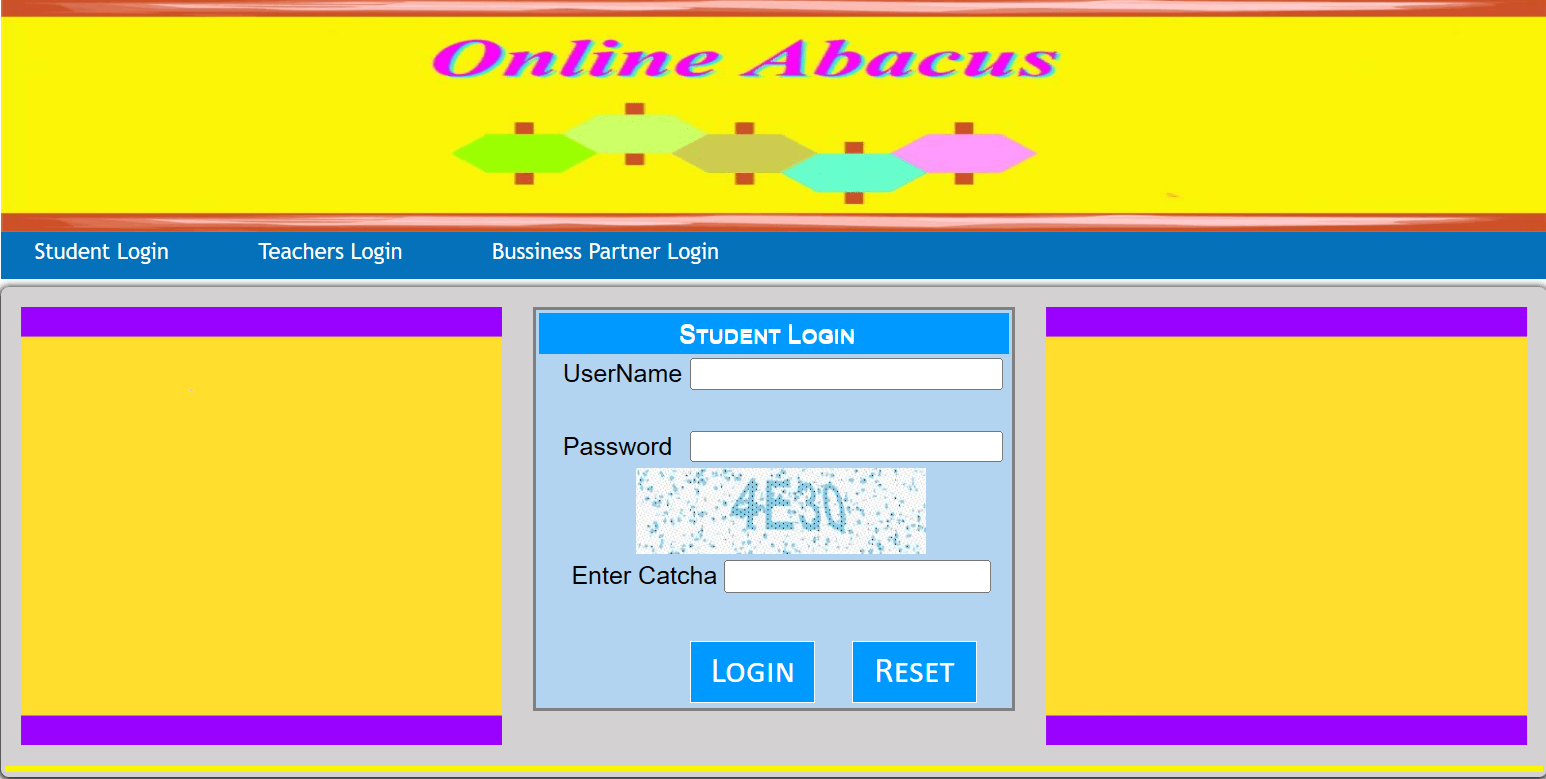
How to Log In:
Enter your Username, Password, and Captcha as shown on the screen.
Note: The Captcha refreshes every 15–20 seconds, so complete all three fields within that time. Once done, click the Login button to access your Dashboard directly.
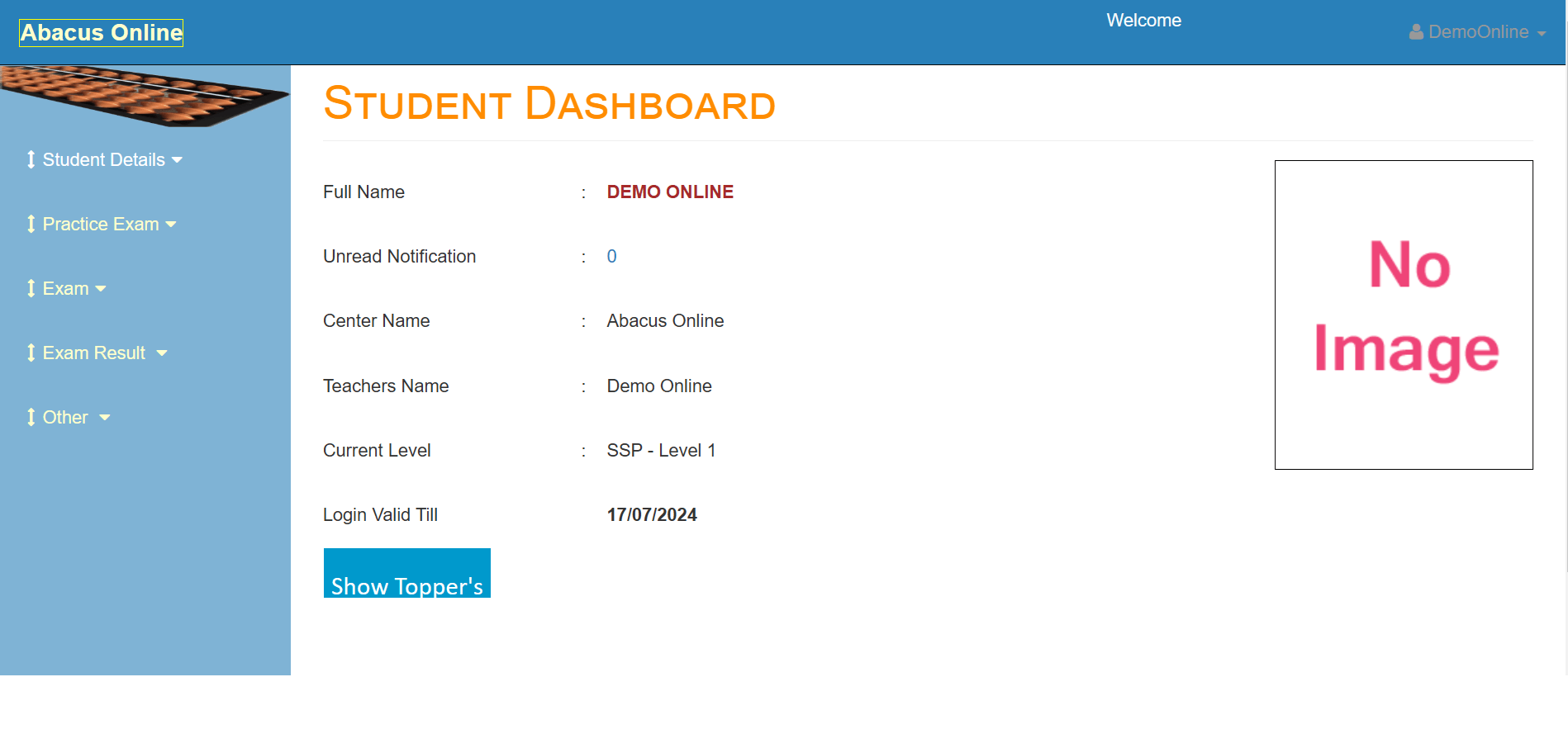
Check Your Profile Details:
Once you reach the Dashboard, review your personal details such as your Full Name, Center Name, Teacher Name, and Current Level. If you find any incorrect information, please contact your respective teacher or service provider to get it corrected.
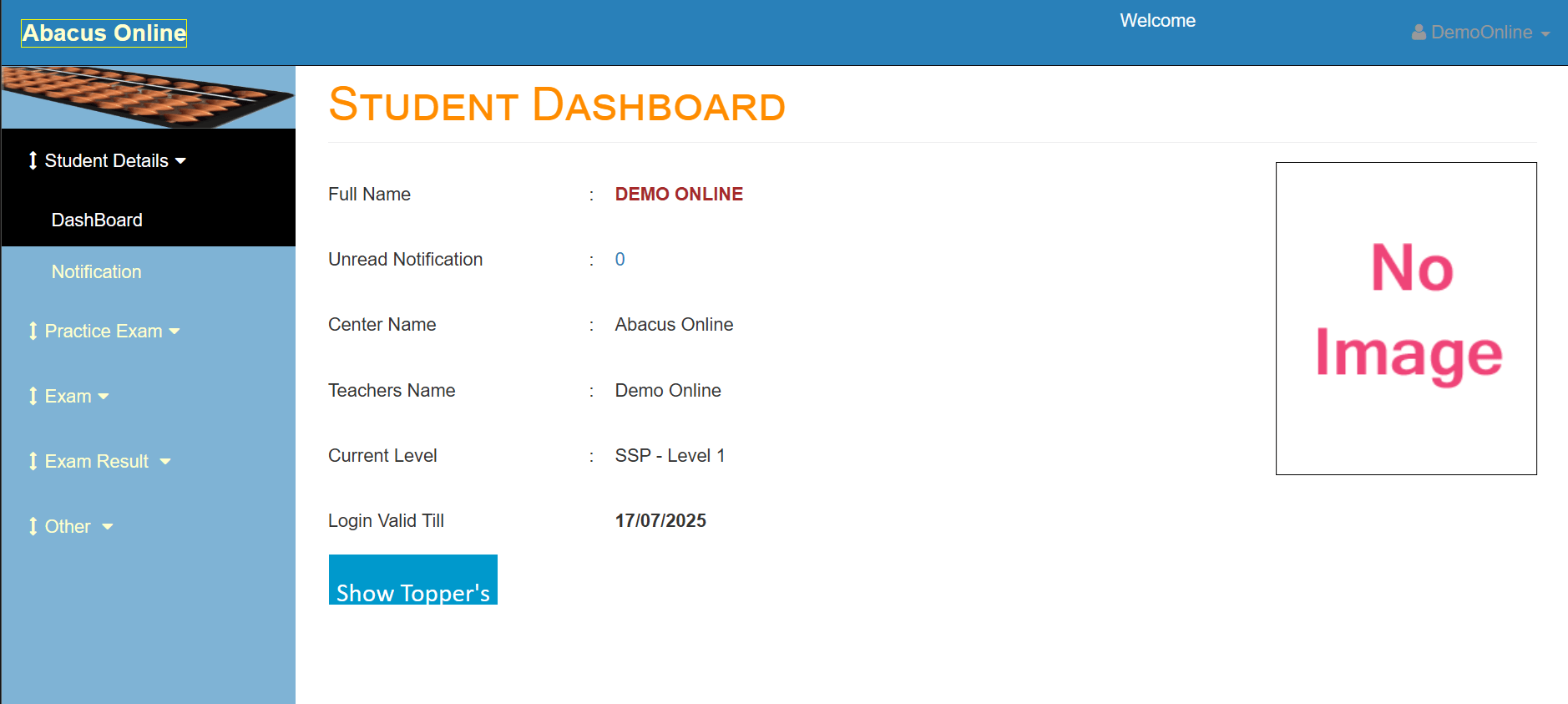
Student Details Tab:
When you click on the Student Details tab, two buttons will appear: The first button opens your Dashboard. The second button gives you access to Notifications.
Dashboard
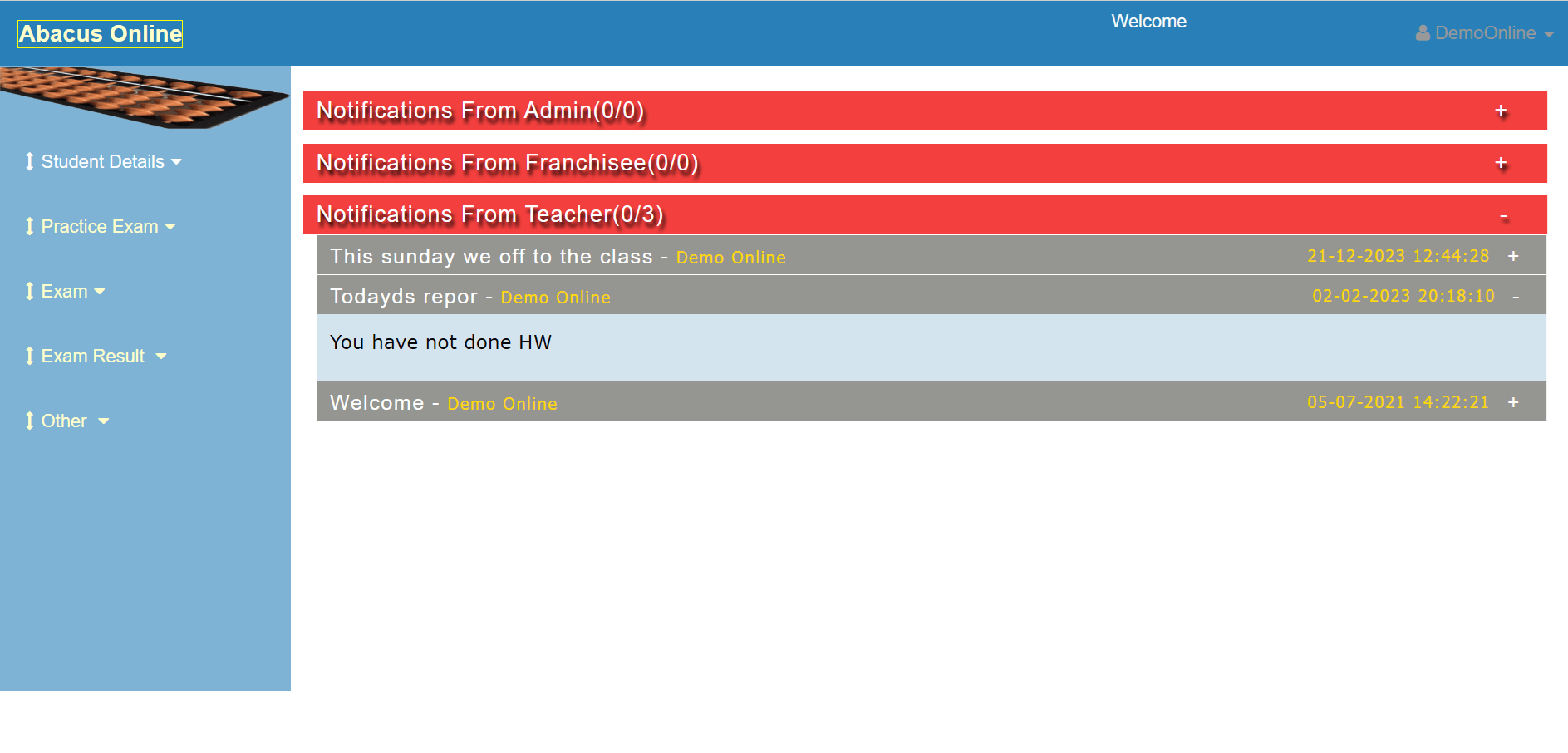
Notification
You can view notifications sent by the company, franchisee, or your teacher. To reply, go to Others → Send Notification section.
Practice Exam Tab> Practice Test
After clicking the Practice Exam tab, you’ll see seven sub-buttons: Practice Test, Dictation Test, Table Test, Topic Test, Virtual Abacus Test, MCQ Topic Test, and MCQ.
We’ll explore each of these options and their uses below.
1. Practice Test
To start a Practice Test, you’ll need to set a few parameters, such as:
Per Session Question Count
Level
Exam Time
Digit Count
Rows Count
If the question data is available and matches your selected parameters, your test will begin automatically. If not, the available question records will be displayed accordingly.
Practice Test
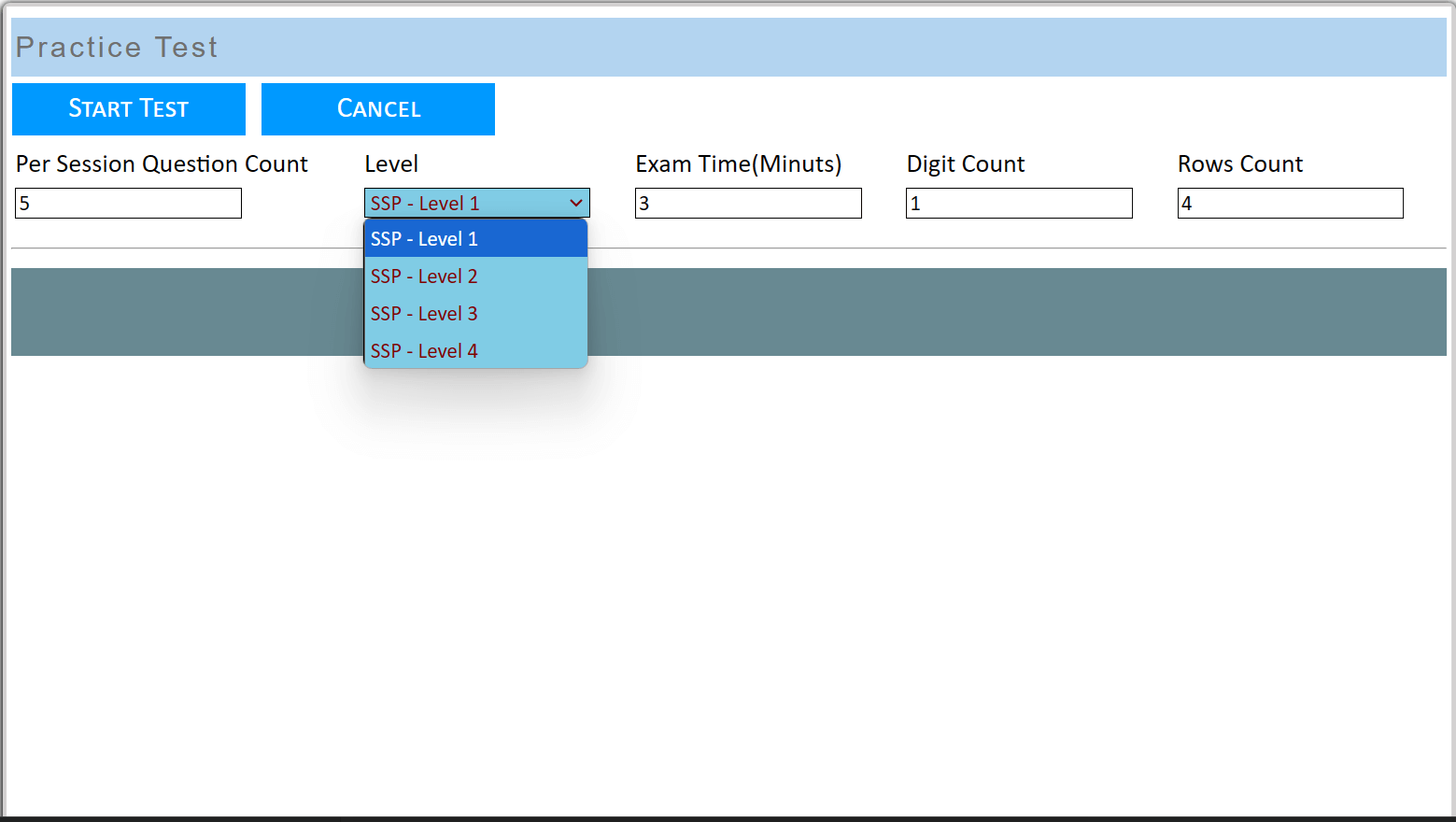
Practice Test
Parameter Matched
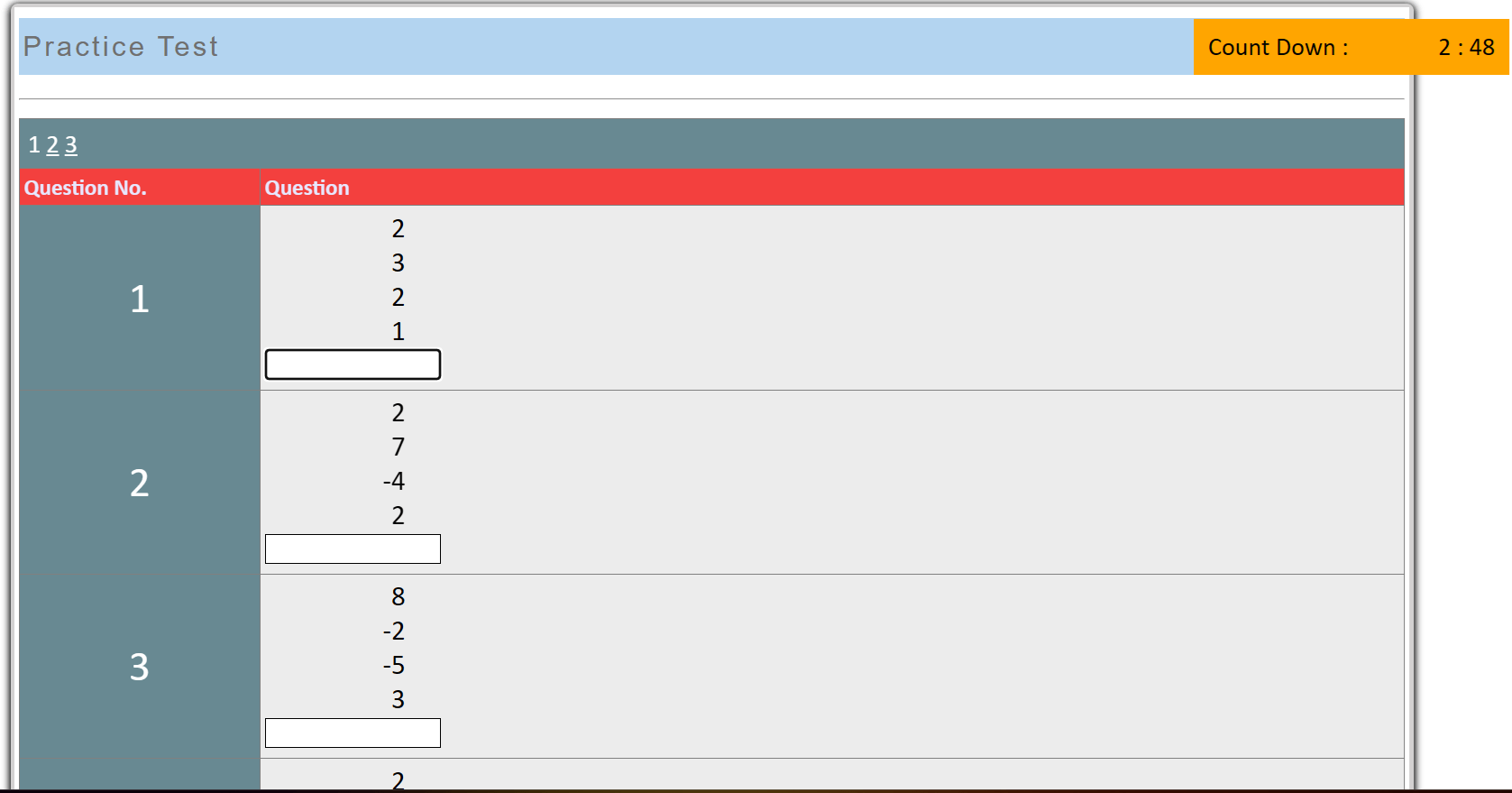
Practice Exam Tab> Dictation Test
2. Dictation Test
The Dictation Test is a type of practice test where numbers appear on the screen one by one at a predefined speed.
You need to calculate each number mentally and enter your answer in the box, then click the Submit button.
After submission, the Show button will appear. Try to solve all the questions quickly and accurately within the given time limit.
Note: The Dictation Test is available only for your current level. You cannot access dictation tests from previous levels.
Dictation Test
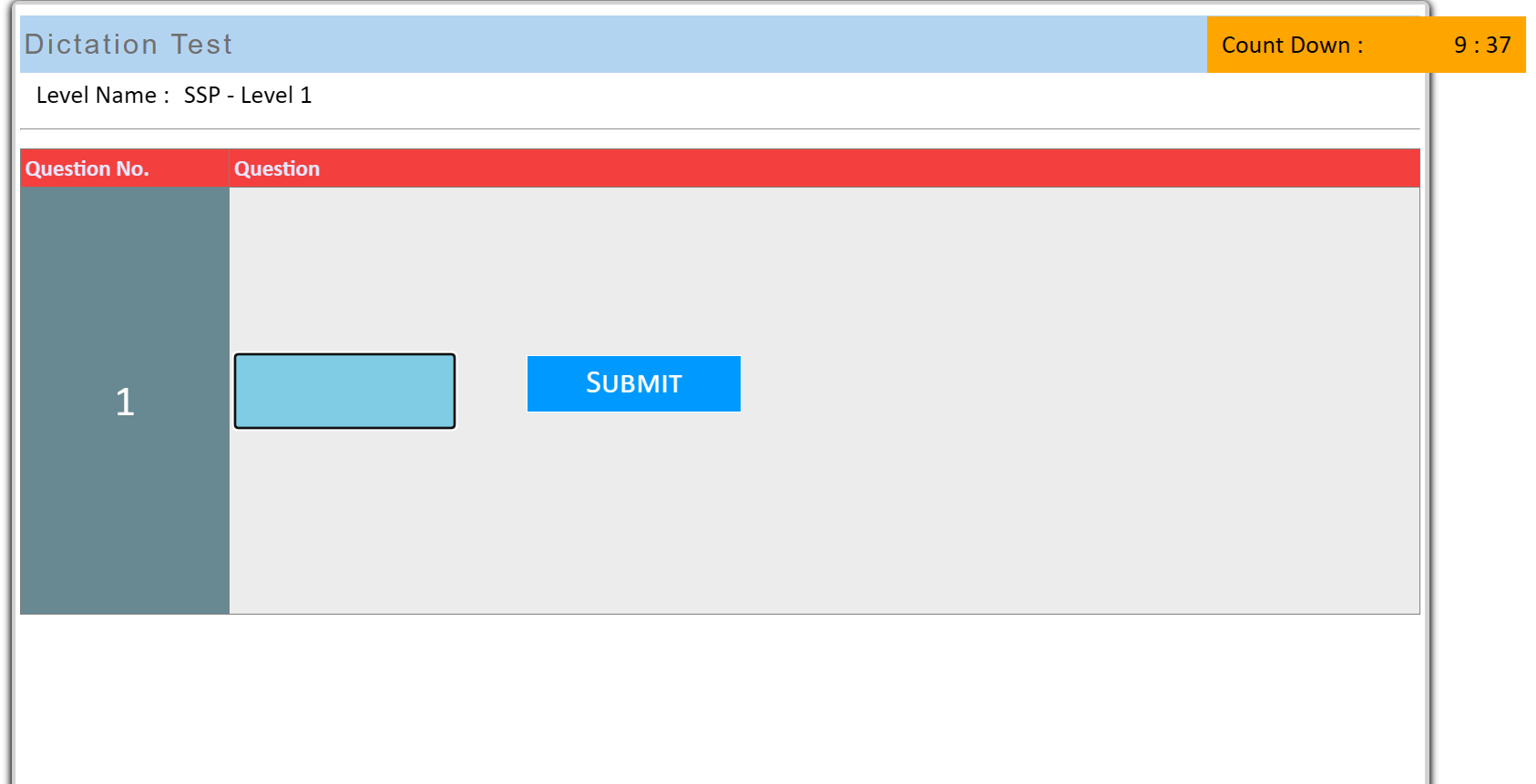
Practice Exam Tab> Table Test
3. Table Test
The Table Test is available from Level 4 onwards and is not accessible in earlier levels. This test helps students practice multiplication tables for given numbers — for example, two-digit numbers (up to 99) in some levels and three-digit numbers (up to 999) in higher levels.
In this test, you need to create tables for the given numbers as instructed on the screen.
Table Test
Practice Exam Tab> Topic Test
4. Topic Test
The Topic Test is one of the most commonly used features by students. Each level includes topic tests that cover subjects according to the syllabus provided in that level’s book.
Students also have access to previous levels, allowing them to review and practice earlier topics if needed.
To start a Topic Test:
a. Click on Practice Exam.
b. Select the Topic Test sub-option.
c. Choose your Level from the dropdown menu.
d. Select the Topic Name.
e. Finally, enter the Exam Time in minutes.
Topic Test
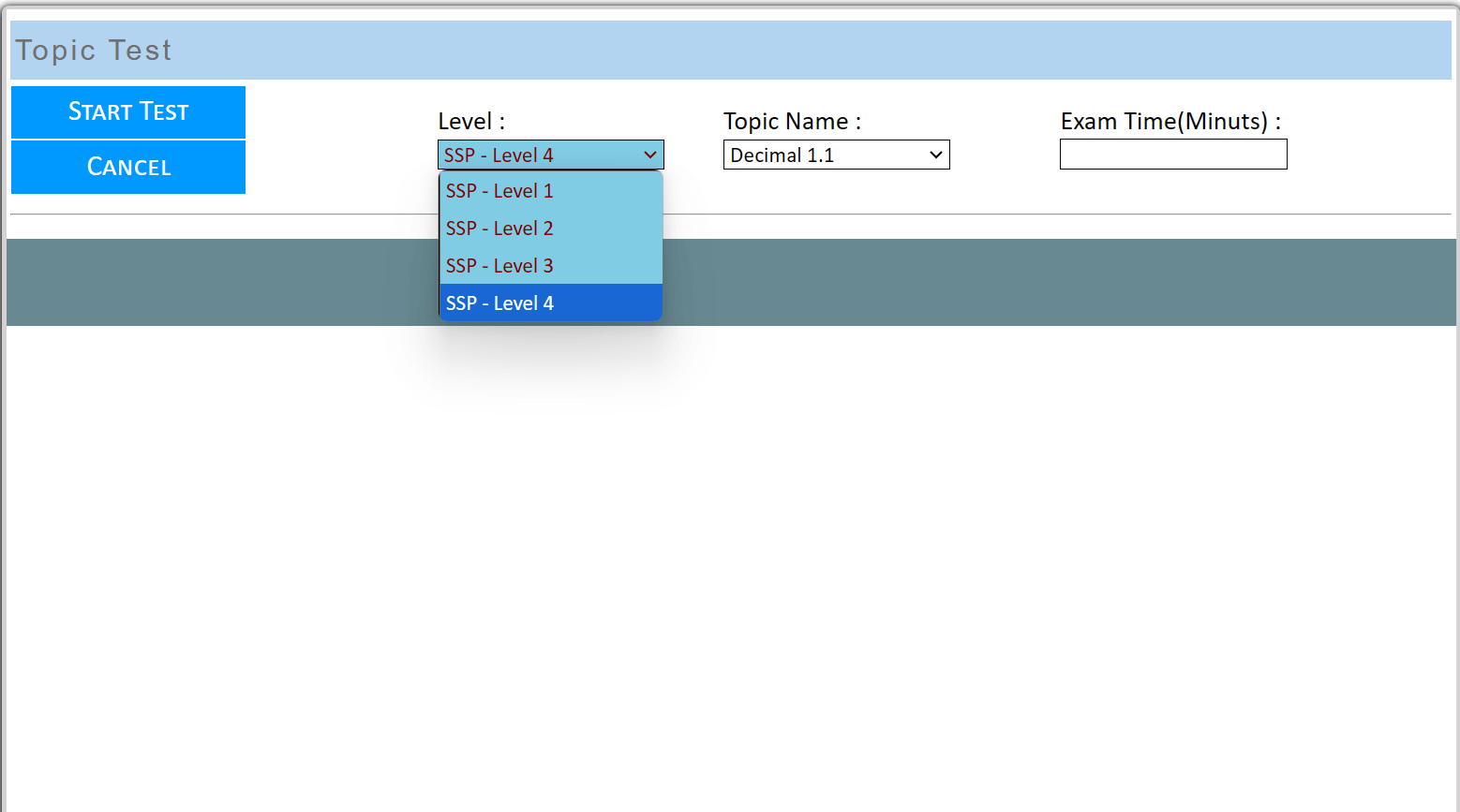
Practice Exam Tab> Virtual Abacus Test
5. Virtual Abacus Test
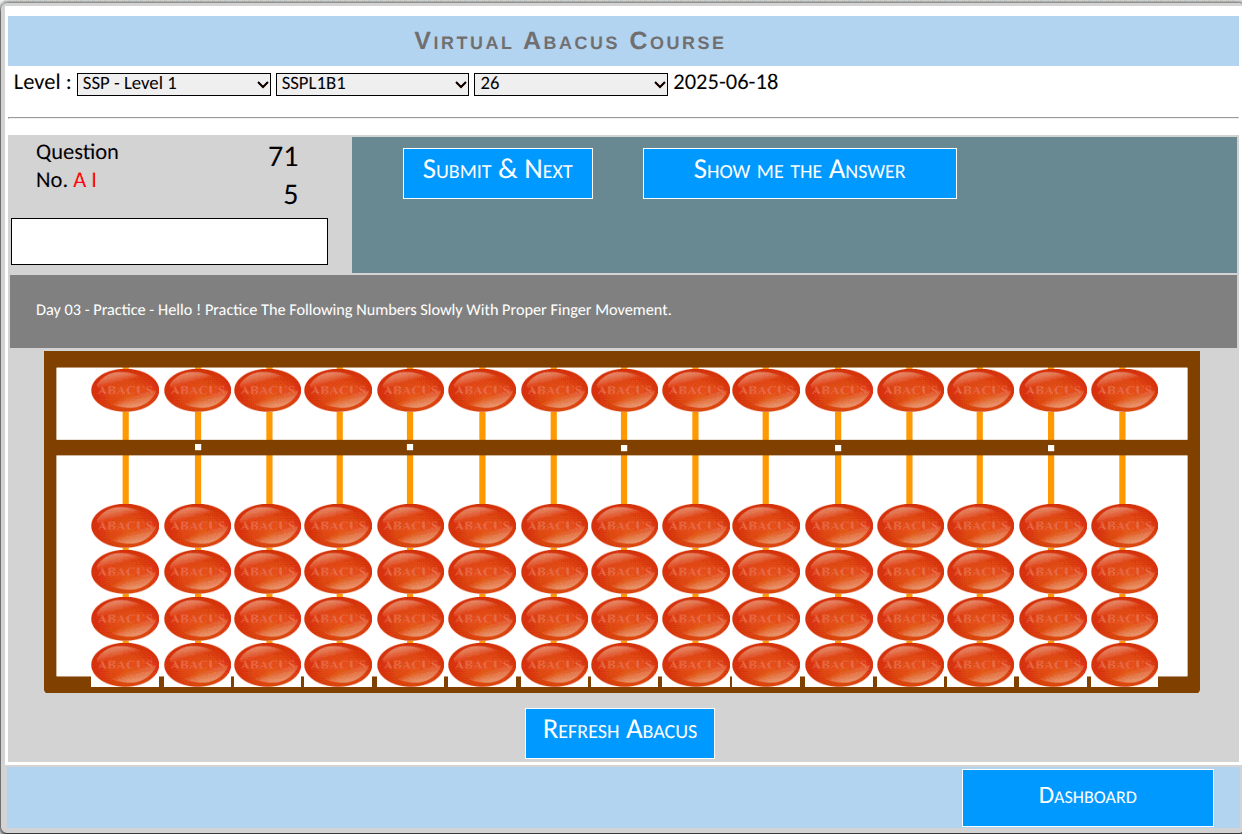
The Virtual Abacus Test lets students practice using an on-screen abacus — a digital version of the abacus book. You can solve pages directly on the screen using the virtual abacus slate instead of a physical book.
How to start the Virtual Book:
a. Click on Practice Exam.
b. Select the Virtual Abacus Test option.
c. Set the required parameters such as Level, Book (1 or 2), and Page No.
Once set, the digital book appears below and displays one question at a time. Use the attached virtual abacus slate to solve each question, then click Submit & Next.
If you need help solving a question, click Show Me The Answer. The virtual slate then switches to interactive mode and reveals the solution step-by-step — click the same button to see the next step.
Note: You can use the Show Me The Answer button for help, but any question submitted using this option will be marked as “Solved with Help” in the report section. You’ll need to reattempt those questions the next time you open this page.
This way, you can gradually complete your Digital Abacus Book through your own login on a mobile, tablet, PC, or laptop.
This feature helps you improve finger movement, visualization, and accuracy without needing a physical abacus or books.
Virtual Abacus
Practice Exam Tab> Topic Test
6. MCQ Topic Test
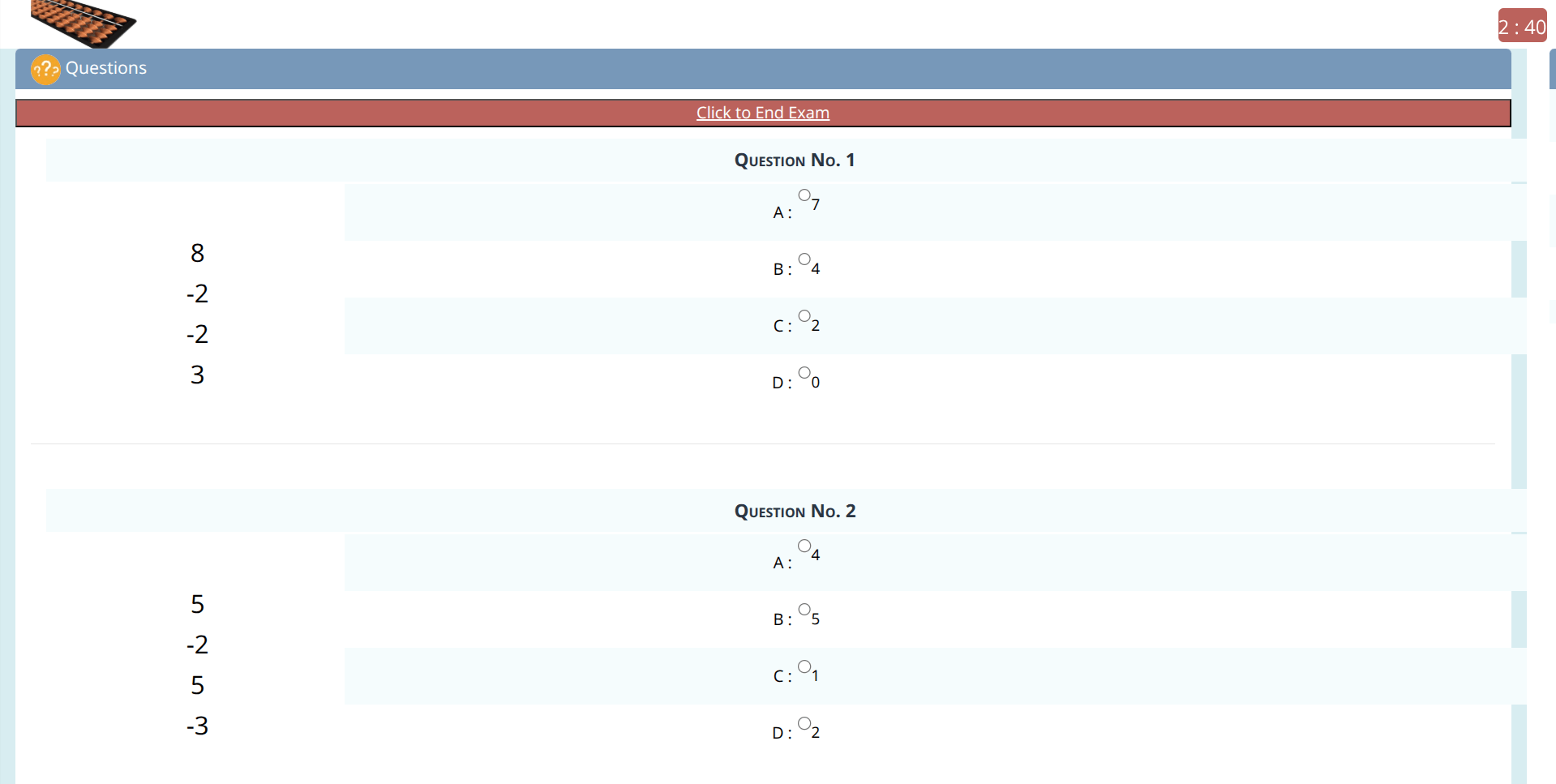
The MCQ Topic Test helps students test their conceptual understanding of each topic through multiple-choice questions. Each level includes several topic-based MCQs designed as per the syllabus given in the level books.
To start the test:
a. Click on Practice Exam.
b. Select MCQ Topic Test from the sub-menu.
c. Choose the Level and Topic Name from the dropdown list.
and click start test.
Each question will have four options, out of which you must select the correct one and click on Next to proceed. Once the test is completed, your score and accuracy report will be displayed instantly.
MCQ
Practice Exam Tab:
The journey